

Add Live Chat to Your Squarespace Website
Use Squarespace Code Injection to deploy IMSupporting site-wide. Add the snippet once, save the settings, publish if required, and your chat launcher is live on every page.
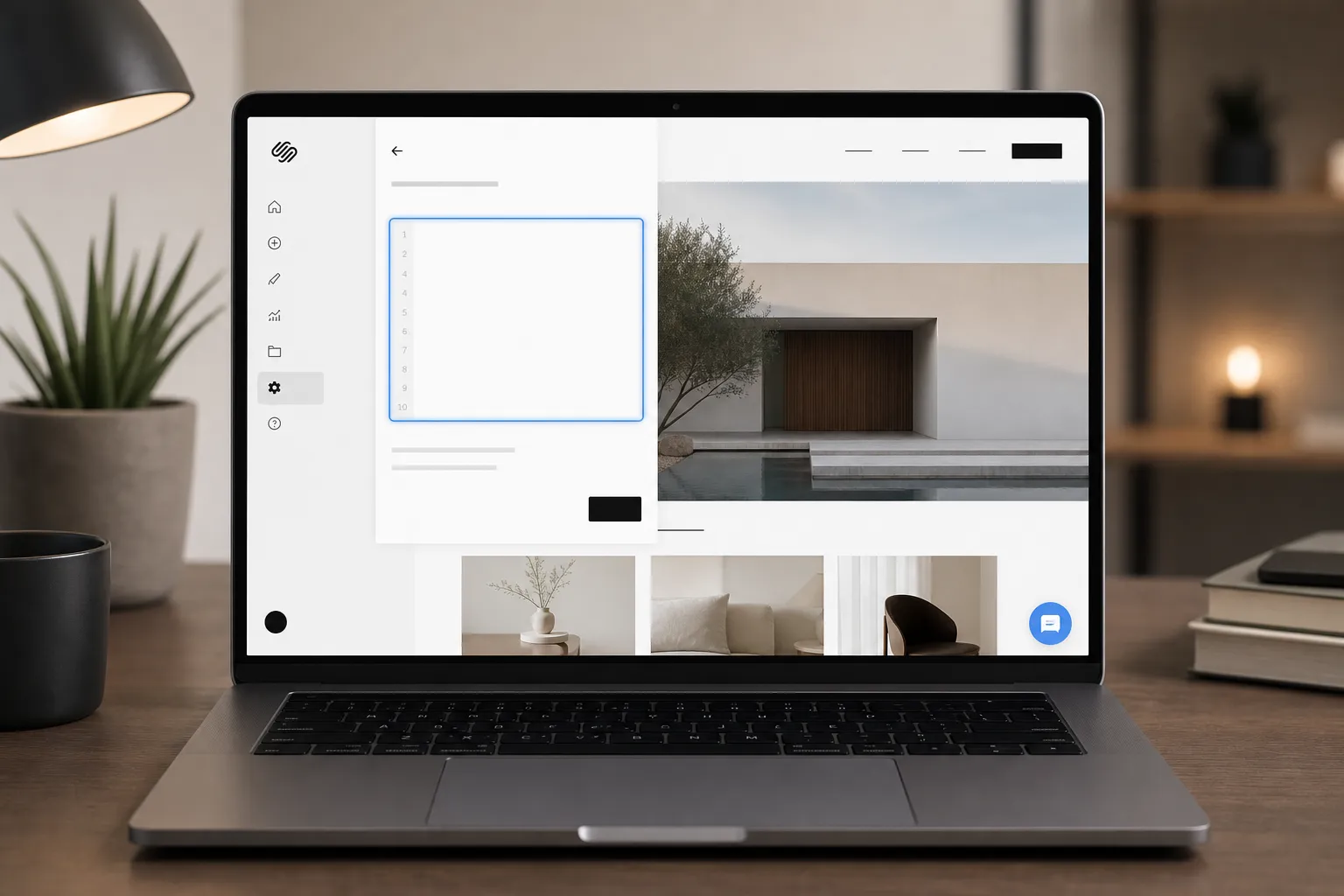
At a Glance — Squarespace Install
Get Your IMSupporting Setup Ready
Start from your IMSupporting account and use the correct site identifier for the widget. The safest source is your account-specific integration setup and the main installation guide.
- Create or log in to your IMSupporting account.
- Copy the correct widget details for your site.
- Keep your Squarespace settings area and IMSupporting dashboard open while you configure the site.
Open Site-Wide Code Injection
- Open your Squarespace website dashboard.
- Go to Website → Pages → Website Tools or open Settings.
- Find Code Injection or the site-wide custom code area for your Squarespace version and plan.
- Use the Footer or end-of-body location — not a page-specific content block.
Add the Chat Widget Site-Wide
Paste the IMSupporting script into the global code area so the launcher appears across your entire website.
- Prefer the Footer or end-of-body placement for cleanest load order.
- Avoid putting the snippet inside a text block, page block, or blog post content area.
- Save your changes after pasting the code.
Save, Publish, and Test
- Save the Squarespace settings.
- Republish the site if your Squarespace workflow requires it.
- Open the public website in a new tab or private window.
- Wait for the chat launcher to appear and send a short test message.
- Confirm the message reaches your IMSupporting dashboard.
Troubleshooting & FAQ
The chat widget is not showing on my Squarespace site
Check that the script was added to a site-wide code area, not a single page block, and confirm the website changes were saved or published. Always test in a private browser window to avoid cached versions.
Should I inject the code into the header or footer?
Use the Footer or end-of-body area when available. That keeps the widget separate from the main page rendering and is the cleanest placement for chat launchers.
The code is saved but I still do not see the launcher
Check the live public site in a private window, clear cached assets, and temporarily disable browser extensions that block scripts. Also confirm the Squarespace site was republished after adding the code.
My Squarespace plan does not include Code Injection
Code Injection is available on Business plans and above. If your current plan does not include it, you may need to upgrade or use Squarespace's per-page code block in a limited capacity.
Can IMSupporting help with Squarespace setup?
Yes. Use our free integration assistance page if you want help validating the install or handling a custom theme.
Ready to Go Live on Squarespace?
Once the launcher appears, configure greetings, departments, AI responses, and workflow steps so every Squarespace visitor gets the right help at the right moment.