

Add Live Chat to Your BigCommerce Store
Install IMSupporting store-wide on BigCommerce by adding the widget snippet to your theme footer or using the Script Manager. One placement covers every storefront page including product pages, cart, and checkout.
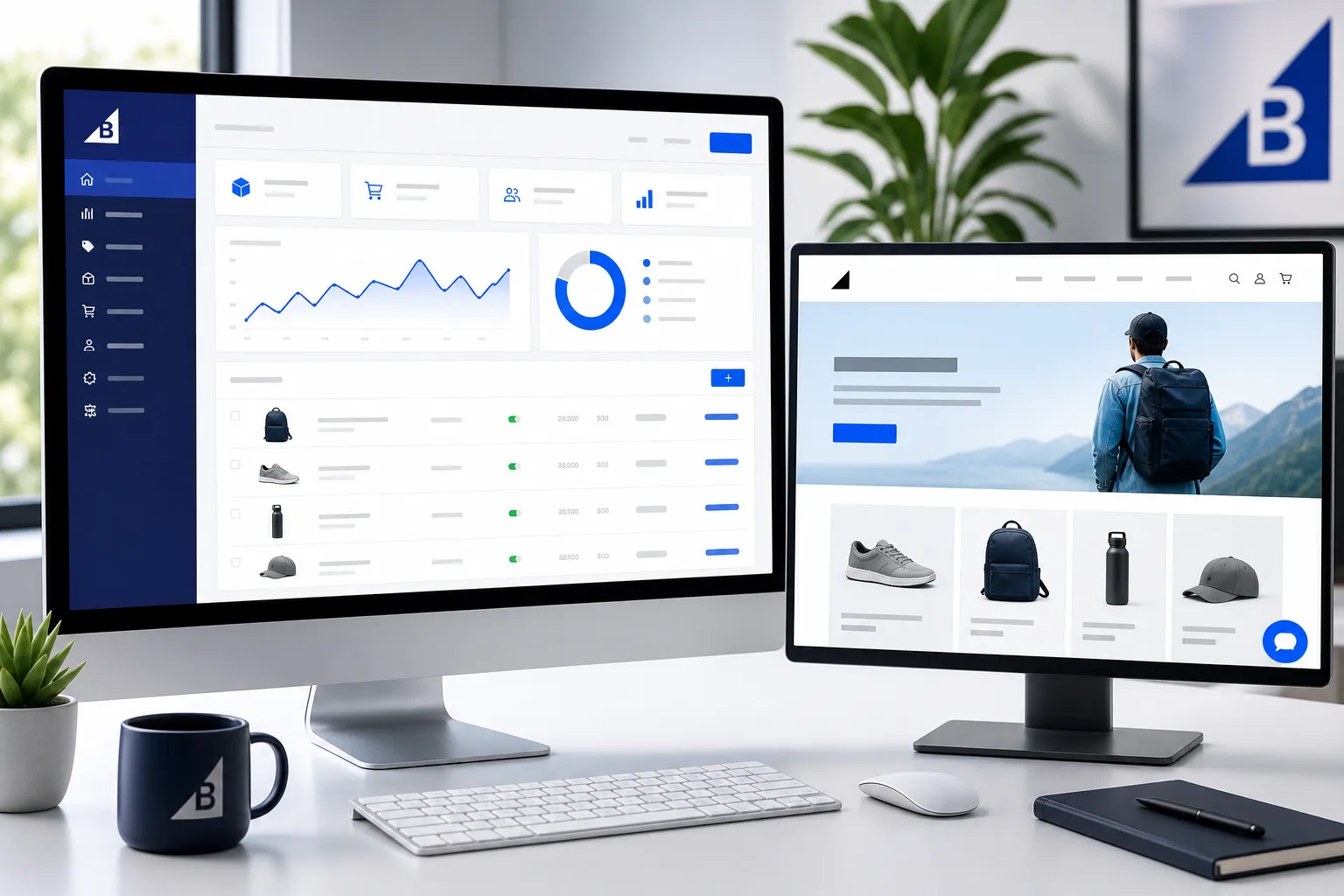
At a Glance — BigCommerce Install
Get Your IMSupporting Embed Code
Log in to your IMSupporting account and copy the widget snippet. Keep it ready before opening BigCommerce admin.
- Sign in at IMSupporting or create a free account.
- Locate your site's installation or integrations section.
- Copy the full script tag including your unique site identifier.
Choose Your BigCommerce Install Method
BigCommerce supports two main approaches for adding third-party scripts. Choose the one that fits your setup:
- Script Manager (recommended): Go to Storefront → Script Manager → Add a Script. Set location to Footer and pages to All Pages.
- Theme template edit: Go to Storefront → Themes → Edit Current Theme and add the snippet before
</body>in the main layout file (usuallybase.html).
Add and Save the Snippet
- Paste the IMSupporting script into the Script Manager or theme template area.
- For Script Manager: Set the name to IMSupporting Live Chat, location to Footer, and select All Pages.
- Click Save.
Test Your Live BigCommerce Store
- Open your BigCommerce storefront in a private browser window.
- Navigate to a product page, category page, and the cart.
- Confirm the IMSupporting chat launcher appears on all pages.
- Send a test message and verify it arrives in your IMSupporting dashboard.
Troubleshooting & FAQ
The chat widget is not showing on my BigCommerce store
Verify the script is saved in Script Manager with All Pages selected, or that the theme template was saved and published. Test in a private browser window to rule out caching.
Script Manager vs theme edit — which should I use?
Script Manager is recommended because it persists through theme updates and does not require code editing. Use a theme edit only if you need more precise placement control.
Does IMSupporting work on BigCommerce checkout pages?
BigCommerce restricts third-party scripts on optimised one-page checkout for security reasons. The widget will appear on all other storefront pages. Contact BigCommerce support about checkout script access if needed.
Can IMSupporting help with my BigCommerce setup?
Yes. Use our free integration assistance page and we will validate the placement and test the result on your storefront.
Ready to Go Live on BigCommerce?
Once the launcher is live, configure AI responses and workflow steps to convert more BigCommerce visitors into customers with real-time support.