

Add Live Chat to Your Wix Website
Use Wix Custom Code to deploy IMSupporting on all pages from a single location. Set the placement to "Body — end", apply to all pages, and your chat launcher is live site-wide in minutes.
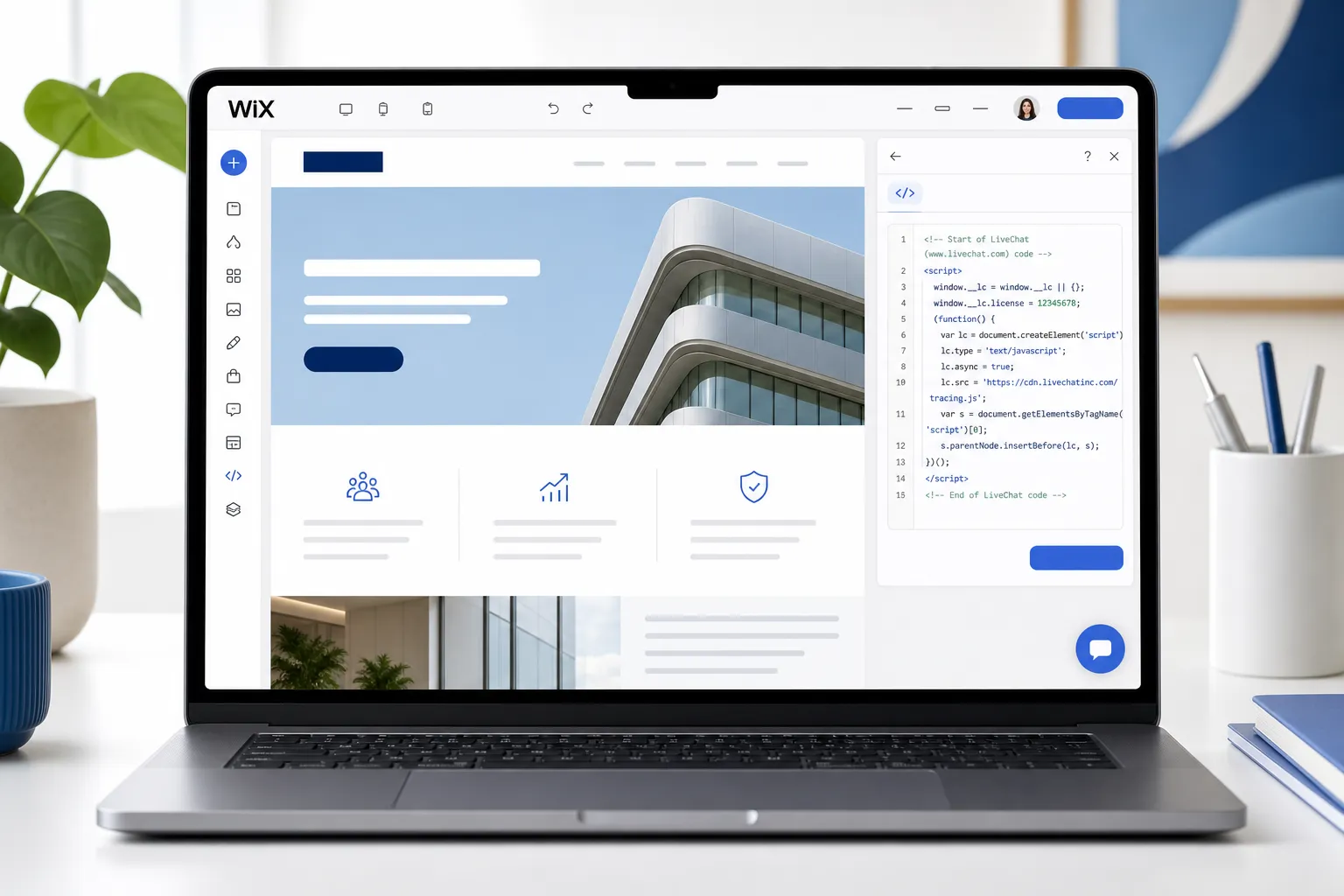
At a Glance — Wix Install
Get Your IMSupporting Embed Code
Log in to your IMSupporting account and copy the embed snippet for your site. You will need this before opening Wix.
- Sign in at IMSupporting or create a free account.
- Find your site's installation or integration section.
- Copy the full script tag — it includes your unique site identifier.
Open the Wix Custom Code Panel
- Log in to your Wix account and open the site editor or site settings.
- Go to Settings → Developer Tools → Custom Code.
- If you cannot find the option, navigate to the Marketing & SEO → Marketing Integrations section.
- Click Add Custom Code to open the code entry panel.
Configure and Add the Snippet
- Paste your IMSupporting embed snippet into the code input area.
- Set the Add Code to Pages dropdown to All Pages.
- Set the Place Code in option to Body — end.
- Give the code entry a recognisable name such as IMSupporting Live Chat.
- Click Apply to save the custom code.
Publish and Test the Live Site
- Click Publish in the Wix editor to push the changes live.
- Open your public Wix site URL in a new tab or private window.
- Wait for the IMSupporting chat launcher to appear in the corner.
- Send a test message and confirm it arrives in your IMSupporting dashboard.
Troubleshooting & FAQ
The chat widget is not appearing on my Wix site
Make sure you tested on the published live URL, not the Wix editor preview. Custom code in Wix only runs on the published site. Also confirm "All Pages" is selected and "Body — end" is the placement.
I use Wix for the chat already — can I switch to IMSupporting?
Yes. Remove or disable the native Wix Chat app from your site and replace it with the IMSupporting Custom Code snippet. Both will not conflict if only one is active.
Is there a Wix app or plugin for IMSupporting?
IMSupporting uses a standard JavaScript snippet installed through Wix Custom Code — no separate Wix app is needed. The snippet approach is the recommended integration path for all third-party chat platforms on Wix.
Can IMSupporting help with my Wix setup?
Yes. Use our free integration assistance page and we will help validate the placement and test the published result.
Ready to Go Live on Wix?
Once the launcher is live, set up greetings, AI responses, and workflow steps to engage every Wix visitor at the right moment.