

Add Live Chat to Your Drupal Site
Install IMSupporting on Drupal by adding the widget snippet globally through your theme template or a block — one placement and it appears across every page of your Drupal site automatically.
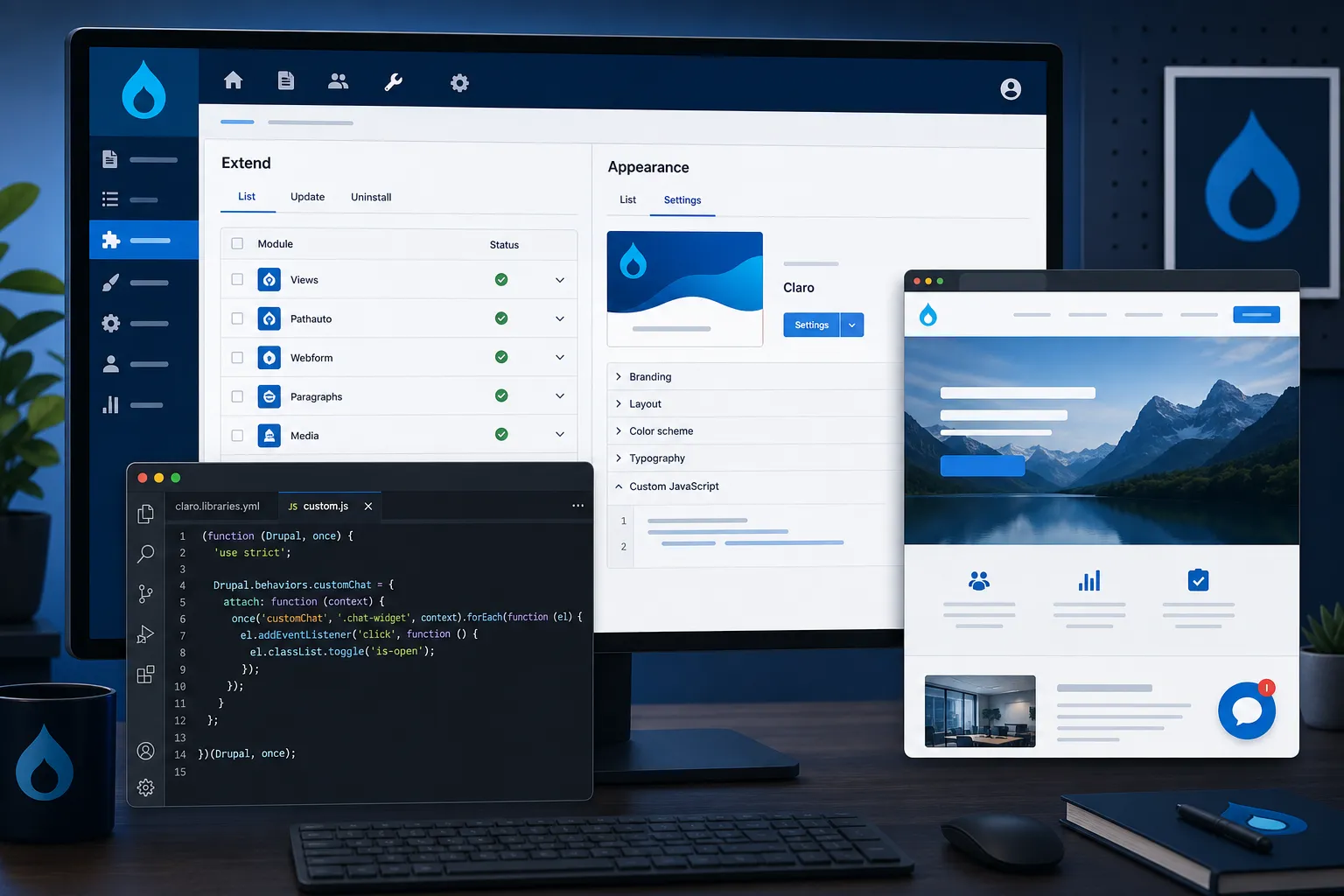
At a Glance — Drupal Install
</body>
Get Your IMSupporting Embed Code
Log in to IMSupporting and copy your widget snippet before opening Drupal's admin.
- Sign in at IMSupporting or create a free account.
- Go to your site's installation or integrations section.
- Copy the full script tag including your unique site ID.
Choose Your Drupal Install Method
Pick the approach that matches your Drupal setup:
- Theme template (recommended): Edit your active theme's
page.html.twigand add the snippet just before</body>. This ensures global placement across all page templates. - Custom block: Go to Structure → Block Layout, create a new custom block containing the snippet, assign it to the global Footer or Page Footer region.
- Drupal snippets module: Install and use a code injection module such as JS Injector or Scripts & Styles to add the snippet without touching template files.
Save and Clear All Drupal Caches
- Save your theme template changes or publish the block.
- Go to Admin → Configuration → Development → Performance and click Clear all caches.
- Alternatively use Drush: run
drush crto rebuild the cache registry.
Test on Your Live Drupal Site
- Open your Drupal site in a private browser window.
- Navigate across multiple page types (home, node pages, taxonomy pages).
- Confirm the IMSupporting chat launcher appears on all pages.
- Send a test message and verify it arrives in your IMSupporting dashboard.
Troubleshooting & FAQ
The chat widget is not showing on my Drupal site
Run drush cr or clear all caches from Admin → Performance. Twig template changes are often invisible until the cache is fully rebuilt. Also check in a private window to rule out browser caching.
Which Drupal versions are supported?
The JavaScript snippet works with Drupal 7, Drupal 9, Drupal 10, and Drupal 11. Template file names and block placement UI differ slightly by version.
Will a theme update remove the snippet from my template?
Yes, if you edited page.html.twig directly. Using a custom block or a JS injection module is safer and survives theme updates automatically.
Can I get help setting this up on Drupal?
Yes. Visit our free integration assistance page and we'll help you identify the right placement for your Drupal version and setup.
Ready to Go Live on Drupal?
Once the launcher is visible, configure workflows and AI responses so your Drupal site converts every visitor into a conversation.